Record on your phone and watch, too.
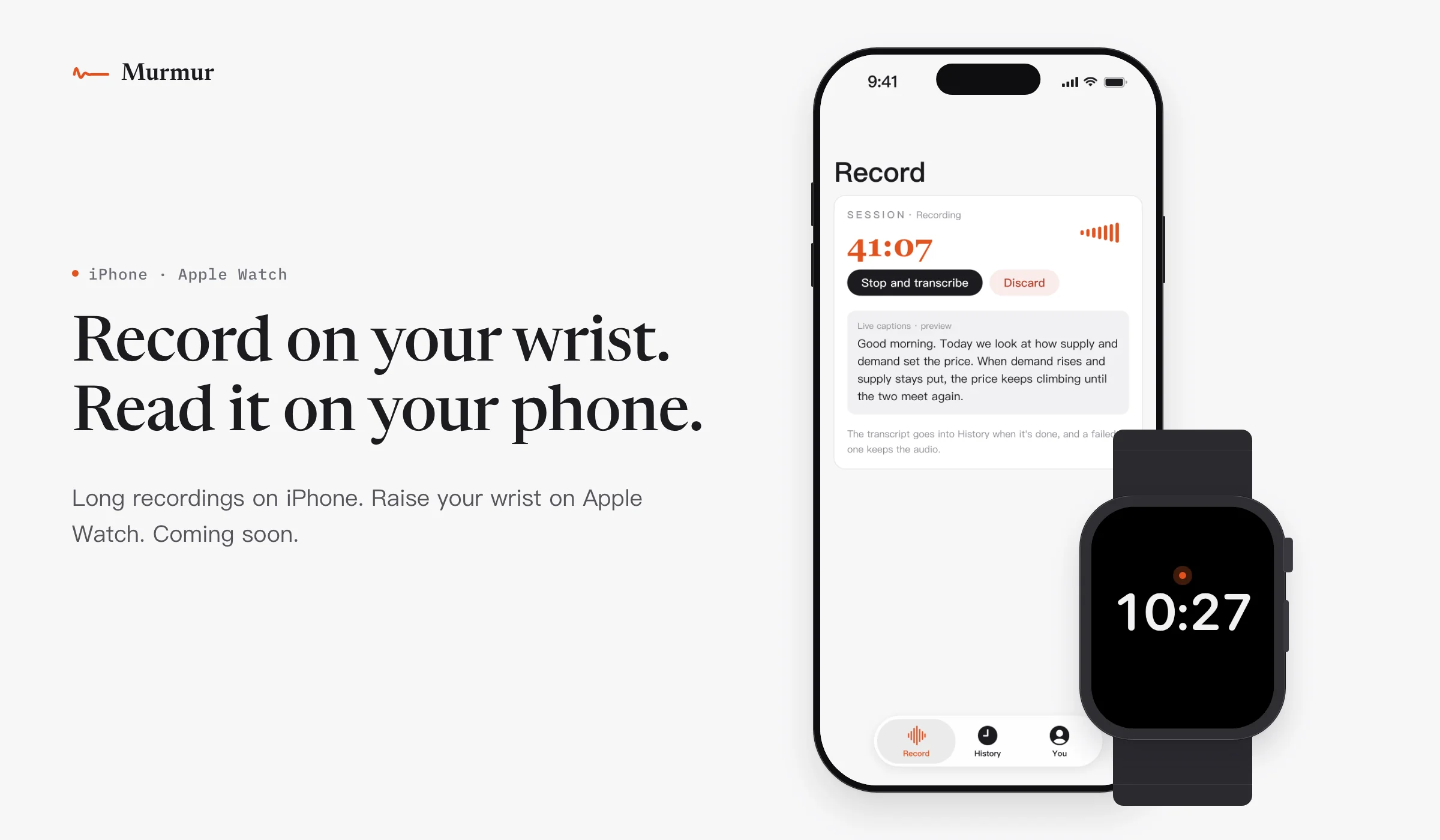
In class or in a meeting, tap your watch to start, then read the full transcript on your phone. iPhone and Apple Watch versions are coming soon.
When you're thinking something through, saying it is far faster than writing it.
Unlike typing or handwriting, speaking lets you think and record at the same time, so ideas don't get lost at the keyboard.
Free · macOS 26 or later · Apple silicon
For now, Murmur runs on the Mac only. On your phone, paste a sentence the way you would say it and see how it comes out →
Tap right ⌘ to start. Tap again to stop.
On the left, typing: half a line, deleted, typed again. On the right, speaking: one more tap at the end and the whole sentence is at the cursor.
With Prompt skills on, tell your AI tool what you want in the order it occurs to you. The prompt it receives has the filler removed, one request per line, and your constraints kept exactly as you said them.
Right ⌘ is dictation, and on its own it will cover you for a long time. Learn the other three when you need them.
Tap to start, tap to stop. Or hold it while you speak and let go when you finish.
right ⌘It works the other way too, and detects the direction on its own.
right ⌥The revised text replaces the original. This works on code too.
right ⌃Ask “what undoes the last commit” and the answer appears at your cursor, not the question. Turn this key on in Settings first.
fnChanged your mind? Press Esc. Each of the four can be reassigned to another key in Settings.
By default, recordings are kept for 30 days and history until you clear it. You can change both in Settings or delete them at any time.
Once you sign in, each sentence you say is sent to the service providers that handle speech recognition and text processing for us, and the result comes back to you. We don't keep a copy of what you said, and we don't sell your data.
When “Use the text on screen to get proper nouns right” is on, Murmur reads the text in the front window once as you start speaking, so it can spell names and terms correctly. It doesn't take screenshots, and what it reads isn't stored on your device. When you're signed in, that text is sent to the same providers along with your sentence. The setting is off by default; you can turn it on in Settings.
The signal drops on the train. Murmur switches to a fallback way of recognising speech and keeps the recording. It is slower then, and less accurate when you mix languages. Once you are back online, you can run it again from your history.
Every sentence keeps its recording. Run it again from your history, or correct the text yourself. Murmur takes your corrections into account next time.
If the microphone picks up nothing or a translation fails, you are told on screen right away, and nothing is typed into your window.
Start a long recording and the text appears on the recording page as people speak, whether it is an online lecture, a video meeting or a meeting in another language. When you stop, the full transcript goes into your history, split by speaker so you can tell who said what. If you use your own recognition service key, the captions can also float above all other windows, even over a full-screen lecture, and for a meeting in another language you can open a second column with the translation. The captions are only a preview; the recording keeps running underneath.
Once you sign in, you get one free long recording of up to 3 minutes. It stops on its own at 3 minutes and keeps what was recorded. To record more, see membership →
Text appears while you are still speaking.
Mix Chinese and English in one sentence. No switching.
Once you sign in, add the names and terms you use often to your dictionary, and Murmur takes them into account when it recognises and tidies up your speech.
If the connection drops or this week's allowance runs out, Murmur switches to a fallback and keeps going, and nothing you said is lost.
Without an account it works with no limit, one language at a time. Mixing languages and tidying up need an account; when your allowance runs out, you get exactly what you said. Signing in only takes your email, no password.
In a meeting room or a library, you still need to type. Murmur includes a Pinyin input method that shares one dictionary with dictation: names you have taught it to hear show up as candidates when you type, and words you type help it recognise you when you speak.
In class or in a meeting, tap your watch to start, then read the full transcript on your phone. iPhone and Apple Watch versions are coming soon.
Built-in dictation writes down what you said, word for word. Murmur turns it into clean written text: filler words removed, word order straightened out, punctuation added, and sentences that mix Chinese and English written correctly. Tidying up requires you to sign in.
Once you sign in, 2,000 words a week (each Chinese character counts as one), shared between dictation and tidying up. When this week’s allowance is used up, you can keep dictating, and Murmur writes down exactly what you said without tidying it. Signing in only takes your email, no password.
Tidying up sentences, removing filler words, mixing Chinese and English in one sentence, translating, asking questions, and rewriting selected text by voice. These draw on the free allowance. Signed out, Murmur recognises one language at a time and writes down exactly what you said.
Text goes wherever your cursor is, with no plugin to install for each app. It works in mail, chat apps, the terminal and code editors. It types at the cursor using the macOS Accessibility permission, which it asks for the first time you open it.
English and Chinese. Once you sign in, you can switch between them mid-sentence without changing any setting, and English words inside Chinese stay in English. Signed out, it recognises one language at a time.
Recordings and history stay on your own device. By default, recordings are kept for 30 days and history until you clear it; you can change both in Settings or delete them at any time. Once you sign in, each sentence is sent to the providers that turn speech into text and tidy it up. We don’t keep what you said, and we don’t sell your data. The privacy page explains how Murmur reads the front window, where those providers are based and how long data is kept.
A Mac with Apple silicon running macOS 26 or later. The download is about 45 MB. Intel Macs and earlier versions of macOS aren’t supported yet. A Windows version is in testing and expected within two months.
Free · macOS 26 or later · Apple silicon · About 45 MB
Sign in with just your email, no password. Sign in →
On an Intel Mac or an older version of macOS? Email support@day1aifitness.com and we will let you know when it is supported.
Unzip and drag Murmur into Applications. On first launch it asks for microphone and Accessibility access. Accessibility is what lets it type at your cursor.
Upgrading from 0.52: quit the old version first, then drag the new download into Applications to replace it. What changed in this version →
A Windows version is in testing. We expect to release it within two months.